Optimizing Fan Orientation: How to Prevent Airflow Conflict in Your PC Build
Overview
You’ve just assembled a powerhouse PC—RTX 50-series GPU, a 360 mm all-in-one liquid cooler, premium components throughout. Expectations are high: frosty CPU temps, silent operation. But reality bites: your CPU idles at a blistering 85°C. Before you suspect bad thermal paste or a faulty pump, consider this: the culprit might be a single fan fighting the rest of the system.
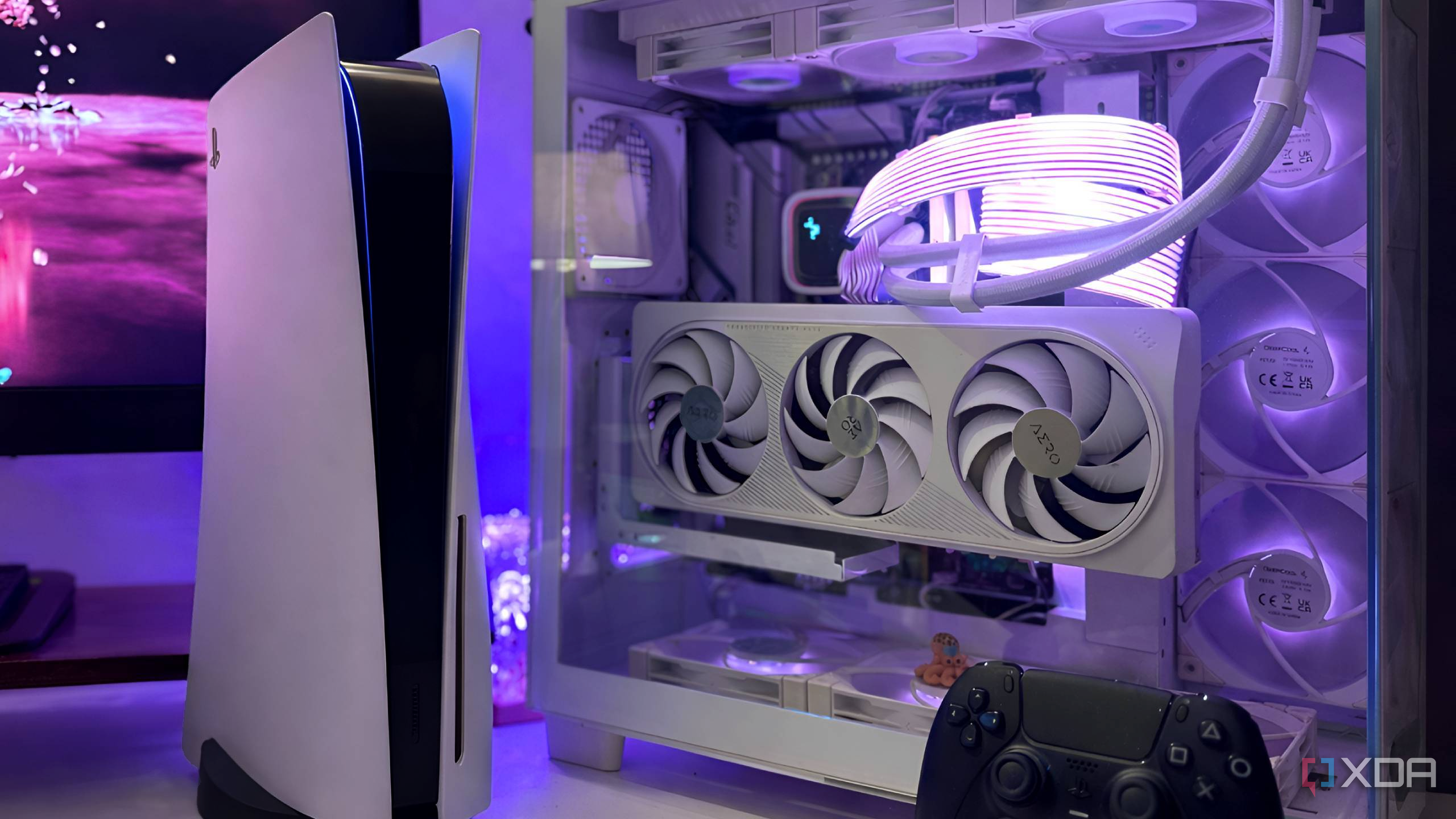
This guide explains how a misoriented fan can create conflicting airflow, leading to recirculating hot air and thermal throttling. You’ll learn to diagnose, correct, and prevent this common build error. By the end, you’ll have a cooler, quieter PC.
Prerequisites
Tools & Skills
- Phillips-head screwdriver
- Fan screws or rubber mounts (depending on your case)
- Basic understanding of PC assembly (handling motherboard, GPU, cooler)
- Patience to reroute cables and remount fans
Knowledge Check
- Familiarity with fan orientation: which side is intake vs. exhaust (usually marked by arrows on the fan hub or frame)
- Common case layouts (front intake, rear/top exhaust)
If you’re unsure about fan labels, refer to the manufacturer’s manual or our quick guide on reading fan airflow arrows.
Step-by-Step Instructions
1. Diagnose Airflow Conflict
Before disassembling, confirm the problem is fan orientation. Use these checks:
- Temperature imbalance: CPU idles high (85°C) but GPU remains cool? That suggests heat trapped near CPU, often due to competing fans.
- Manual fan test: Stop all fans temporarily (via BIOS or software). If CPU temp drops dramatically, you have airflow fighting.
- Visual smoke test: Use incense or a tissue near the radiator/intake. Observe if air is being pulled in or pushed out. If a front fan is exhausting instead of intaking, it will blow smoke away from the case.
2. Identify the Rogue Fan
Most common conflict scenario: A top-mounted radiator fan (exhaust) and a rear-case fan (also exhaust) create low pressure, but a front-bottom fan configured as intake may be fighting a side panel fan set to exhaust. More frequently—as in our original example—one fan on the radiator is accidentally reversed.
Check each fan’s frame for arrows indicating direction of airflow (← airflow →) or rotation direction. Remember: air flows toward the direction the arrow points. On a typical radiator fan, the side with the sticker is often the intake side (air pulled through the sticker side).
Create a mental map: In a standard case with front intake, rear/top exhaust, all fans should agree. If one top fan blows downward (intake), it fights the rear exhaust and recirculates hot air.
3. Correct Fan Orientation
Suppose you found a fan on the 360 mm AIO radiator that is exhausting air toward the radiator (pushing hot air outside) but the adjacent case fan is also exhausting, creating a dead zone. The fix: flip that fan so both work together.
- Power off and unplug the PC. Disconnect all cables.
- Remove the offending fan from its mount (loosen screws or remove rubber grommets).
- Flip it 180° so the arrow points in the desired direction. For a top-mount radiator, that usually means pulling air through the radiator and out of the case (exhaust).
- Reattach using same mount points. Ensure cables are routed neatly.
- Test orientation before full reassembly: temporarily power on and feel airflow.
4. Verify with Hardware Monitoring
After physical correction, use software to confirm temperature drop:
# Example using PowerShell (Windows) if HWiNFO is installed
.\HWiNFO64.exe -sensors -interval 1000
Or use built-in tools like MSI Afterburner or AIDA64. Aim for idle CPU temps below 40°C (ambient dependent). If temps remain high, repeat diagnosis—maybe the pump speed is too low (check pump header).
Common Mistakes
Ignoring Fan Frame Markings
Many enthusiasts assume airflow direction based on which side of the fan has the sticker. While often correct, it’s not guaranteed. Always look for the arrow.
Mixing Intake and Exhaust on the Same Radiator
On AIO coolers, all fans on the radiator should push or pull in the same direction. One reversed creates a dead zone inside the radiator, reducing cooling efficiency.
Overlooking Pressure Balance
Even with correct orientation, having too many exhaust fans (negative pressure) can pull unfiltered air from crevices. Conversely, too many intakes (positive pressure) may cause air to escape without carrying heat. Aim for slight positive pressure.
Wire Routing Interference
Flipping a fan might cause cables to rub against blades or block airflow. Secure cables with zip ties away from the fan hub.
Forgetting to Update Fan Curves
Correcting airflow sometimes introduces new noise or inefficient speeds. After fixing orientation, adjust fan curves in BIOS to balance performance and acoustics.
Summary
Misoriented fans can silently sabotage your PC’s cooling, causing CPU idle temps to skyrocket despite premium hardware. By systematically checking arrow directions, ensuring all case and radiator fans agree on airflow direction, and maintaining balanced pressure, you can transform a chugging build into an efficient, silent performer.